

For most of its life, ChatGPT has answered you the same way: a block of text, maybe with a table or an image. That changed for many users on October 7, 2026, when OpenAI began rolling out GPT-6 in ChatGPT together with a new feature called Intelligent UI [3][4]. It lets ChatGPT build an answer as a mini interface, such as an interactive diagram, a chart, a map, a checklist or a small tool you can use inside the conversation [1][4].
OpenAI says more than 1.2 billion people use ChatGPT each week [4], and this update is rolling out to Free users too [1][3]. In our view, that makes it one of the most visible changes of the year for everyday AI users. This ChatGPT Intelligent UI guide covers what it is, who gets it, how to use it well, its limits, and how to turn it down.
Quick summary (TL;DR)
- What it is: GPT-6 in ChatGPT can answer with text plus visuals and interactive elements, such as charts, buttons, forms and mini tools [1].
- When it arrived: The rollout began on October 7, 2026 for paid plans and on October 8 for Free and Go. It is gradual, so some accounts may get it later [2][3][4].
- Which model: GPT-6 Sol on paid plans and GPT-6 Luna on Free and Go. The separate “Pro” reasoning option uses GPT-6 Astra, which does not support Intelligent UI [1].
- Where it works: In the Chat tab only. It does not work in the Work tab or in Voice [1].
- Can you turn it off? Not completely. On the web you can choose a simpler layout in Settings, which reduces the visuals [1][2].
- Our advice: Use it for learning, planning and quick tools. Always double-check numbers, prices and times.
What is ChatGPT Intelligent UI?
According to OpenAI’s help center, GPT-6 was trained to “compose responses using text, visuals, and interactive elements,” choosing how they fit together based on your question. Responses can include “graphics, tappable buttons, forms, charts, and interactive experiences” that you use directly in the conversation [1].
ChatGPT chooses the format automatically, though your prompt and settings can influence it. OpenAI’s examples: a comparison might work best side by side, an explanation might be easier to follow as an interactive diagram, and when a simple text answer is the most useful, ChatGPT can simply give you text [1]. You do not need a special prompt to trigger it [2].
What does that look like in practice? In a hands-on test before launch, WIRED’s reporter asked for a diagram of a slug and got an anatomy visual with a button for each body part. He also had ChatGPT build an airplane-seat explorer comparing cabin layouts, where he could tap any seat for details and the exit rows were highlighted [3]. OpenAI’s own examples include a trip plan shown on a map and a bill splitter [4].
Answers that start sooner
GPT-6 also changes when you start reading. A response may begin while ChatGPT is still thinking, with more detail added as it goes [2].
Who gets GPT-6 and Intelligent UI?
Here is what OpenAI’s help pages and launch-day coverage say [1][2][3][4]:
| Plan | Model behind GPT-6 in Chat | Rollout began |
|---|---|---|
| Free and Go | GPT-6 Luna | October 8, 2026 |
| Plus, Pro, Business | GPT-6 Sol | October 7, 2026 |
| Enterprise | GPT-6 Sol (availability depends on workspace settings) | October 7, 2026 |
A few important details:
- Chat tab only. Intelligent UI is not available in the Work tab, and it does not work in Voice [1].
- Reasoning levels. It works at the Instant through Extra High reasoning levels. The separate Pro reasoning option (not to be confused with the ChatGPT Pro plan) uses GPT-6 Astra and does not support Intelligent UI [1].
- Apps and devices. It is rolling out on the web and in supported, updated apps, so update your mobile app first. OpenAI says the older ChatGPT desktop apps for macOS and Windows don’t support it; use the web if you don’t see it [2].
- No extra quota. Intelligent UI has no separate usage limit. Your normal plan limits still apply [2].
A note on naming: OpenAI’s Intelligent UI help page says Free and Go users get GPT-6 Luna [1], while another OpenAI help page still mentions GPT-5.6 Luna as the default for those plans [2]. The rollout is gradual, so you may still see GPT-5.6 for a while; what you see depends on your account and timing.
How to use Intelligent UI: 6 practical ideas
You don’t switch Intelligent UI on; you just ask. But how you ask matters. Below are practical, family-friendly ideas based on the kinds of examples OpenAI and early testers showed [1][3][4]. The prompts are our own suggestions, and your results may vary because ChatGPT can answer differently each time.
1. Learn a hard topic with an interactive diagram
This is one of its strongest uses. OpenAI notes that an explanation can be easier to understand through an interactive diagram [1], and WIRED’s slug-anatomy test shows the idea: tap a part, read about it [3].
Try: “Explain how the human heart pumps blood, with an interactive diagram I can tap to see each chamber.”
2. Plan a trip on a map
A trip plan laid out on a map is one of OpenAI’s own examples [4], and a natural fit for family travel inside the Kingdom. See our AlUla test below.
3. Build a quick tool for one job
You can ask ChatGPT to build a small tool for a single task, such as a bill splitter [4].
Try: “Make a simple tool to split a restaurant bill of 480 Saudi riyals (SAR) between 6 friends, with buttons to change the number of people.”
4. Compare options side by side
Comparisons are a natural fit: OpenAI says a comparison “might work best side by side” [1].
Try: “Compare three laptops for a university student under 4,000 SAR in a side-by-side table, and explain which suits programming best.”
5. Turn a plan into a checklist
Some components, such as checklists, keep their state when you refresh the same chat, but not in a new chat [1]. That makes them handy for a single project.
Try: “Create a moving-house checklist I can tick off, grouped by two weeks before, one week before and moving day.”
6. Study with quizzes and flashcards
ChatGPT can create interactive flashcards that you tap to flip, mark as known or not, and find again in your library [5]. In study mode, you can also ask it to quiz you one question at a time and explain what to review next [6]. Both are ideal for students.
Try: “Quiz me with 10 questions on the water cycle, one at a time, and explain my mistakes.”
Prompting tips that help
- Say the format you want. For example: “show this as a timeline,” “use a table,” or “give me a tool with sliders.” OpenAI says such preferences “guide the response; the exact layout can vary” [1].
- Give specific numbers and limits, such as the amount, number of people or budget. Concrete requests produce more useful tools.
We tested it: planning a family trip to AlUla
On October 21, 2026, we tested it in the ChatGPT iPhone app with this prompt: “Plan a 3-day family trip to AlUla in December with a day-by-day itinerary, a map of the main sites, and a simple budget chart in Saudi riyals.” The app is set to Arabic, so the first answer came in Arabic; we then asked for “the same plan again, fully in English.” The English answer contained:
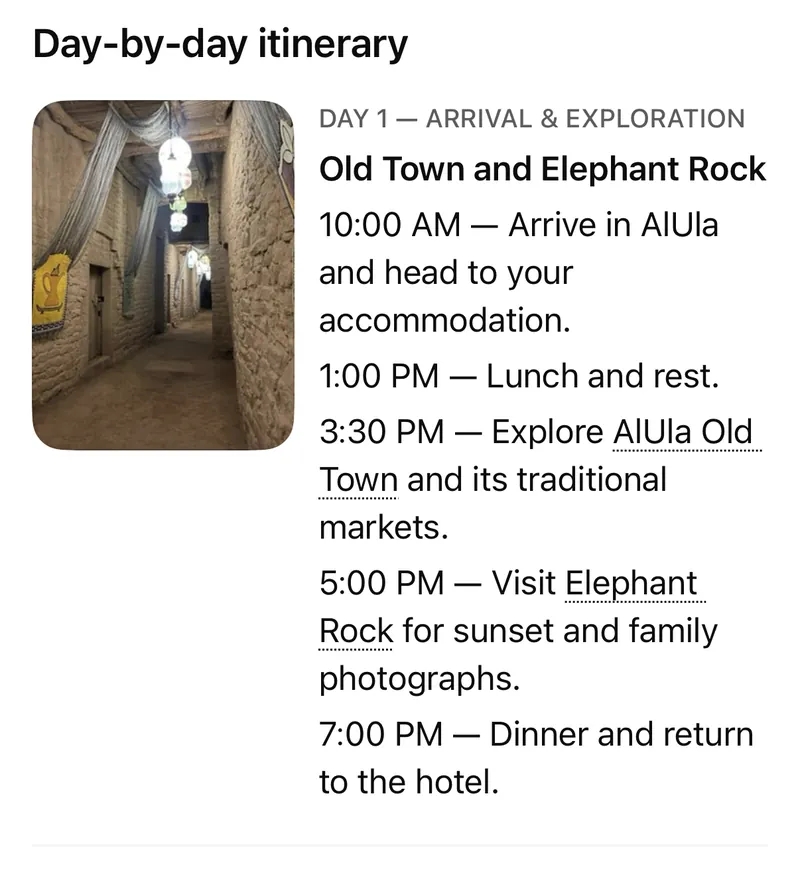
A day-by-day itinerary. Three cards with photos: Old Town and Elephant Rock, Hegra and AlUla Oasis, and Maraya. ChatGPT labeled the times as suggested planning times, not confirmed bookings.
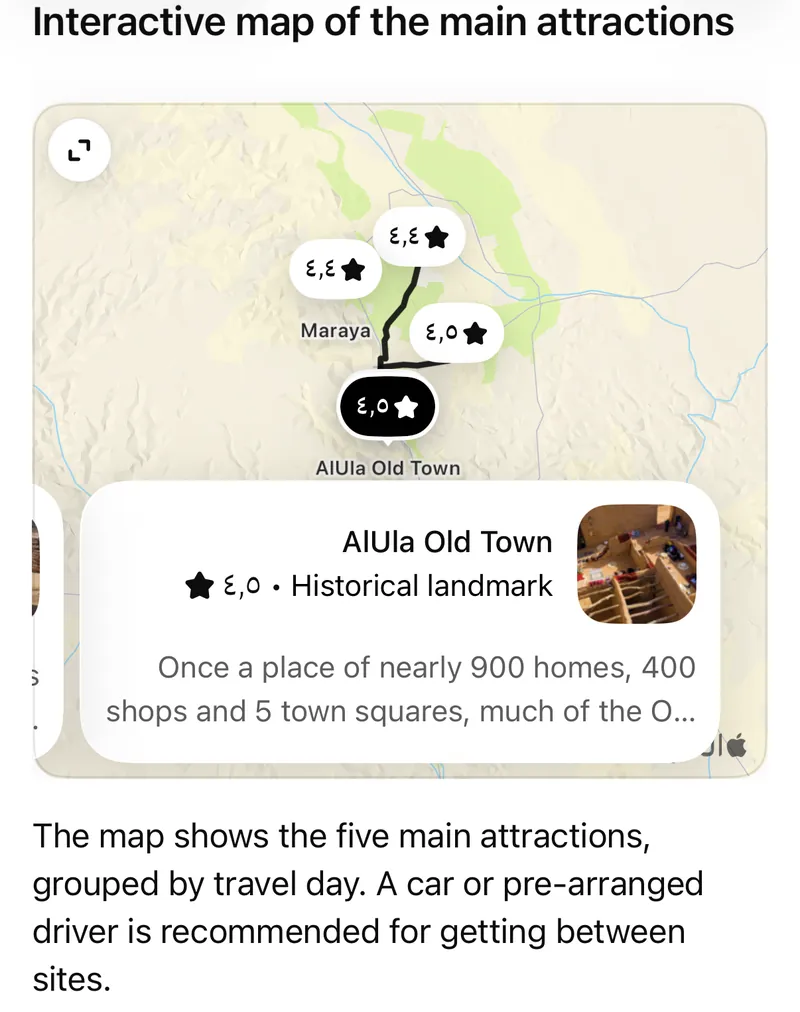
An interactive map. Five main attractions, grouped by travel day, with place cards showing a rating and a type, such as “AlUla Old Town, 4.5, Historical landmark.”
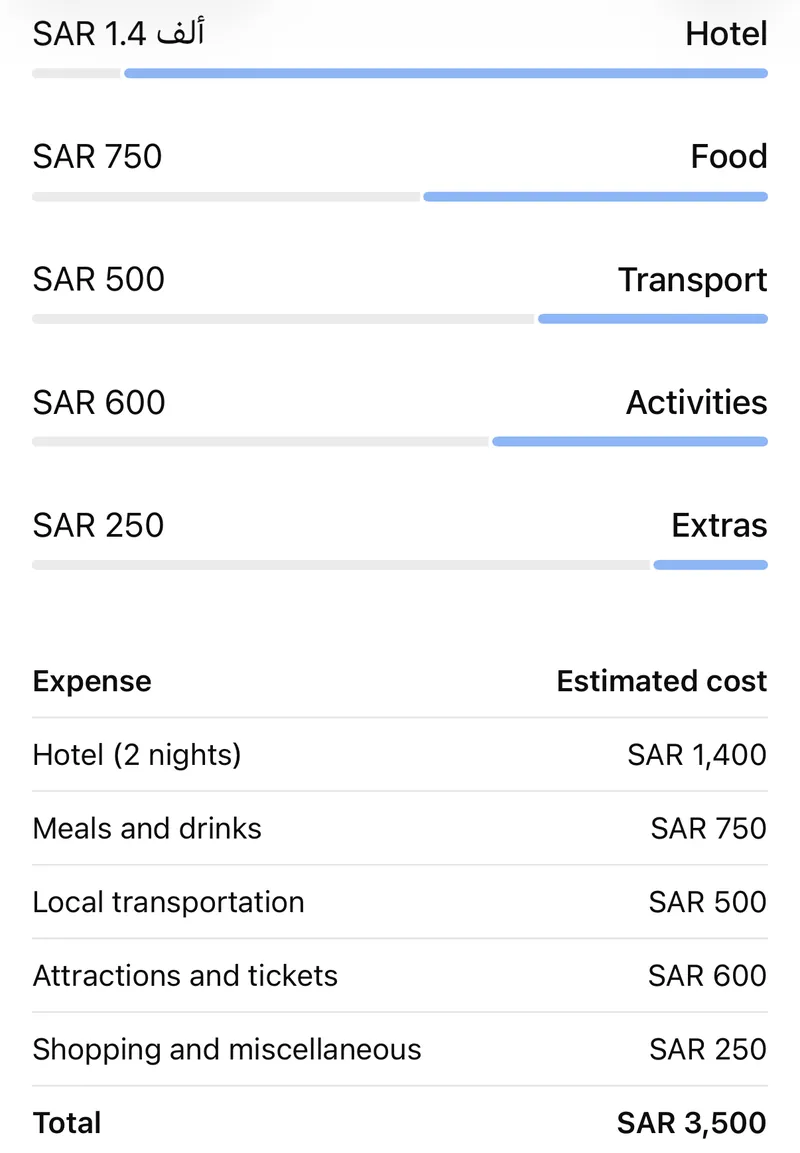
A budget chart in riyals. Bars plus a table for a family of four: hotel SAR 1,400, food 750, transport 500, activities 600 and extras 250, a total of SAR 3,500 (about 875 per person), excluding travel to AlUla. These are ChatGPT’s estimates, not price quotes, as the answer itself noted, and it pointed to Experience AlUla for current prices.
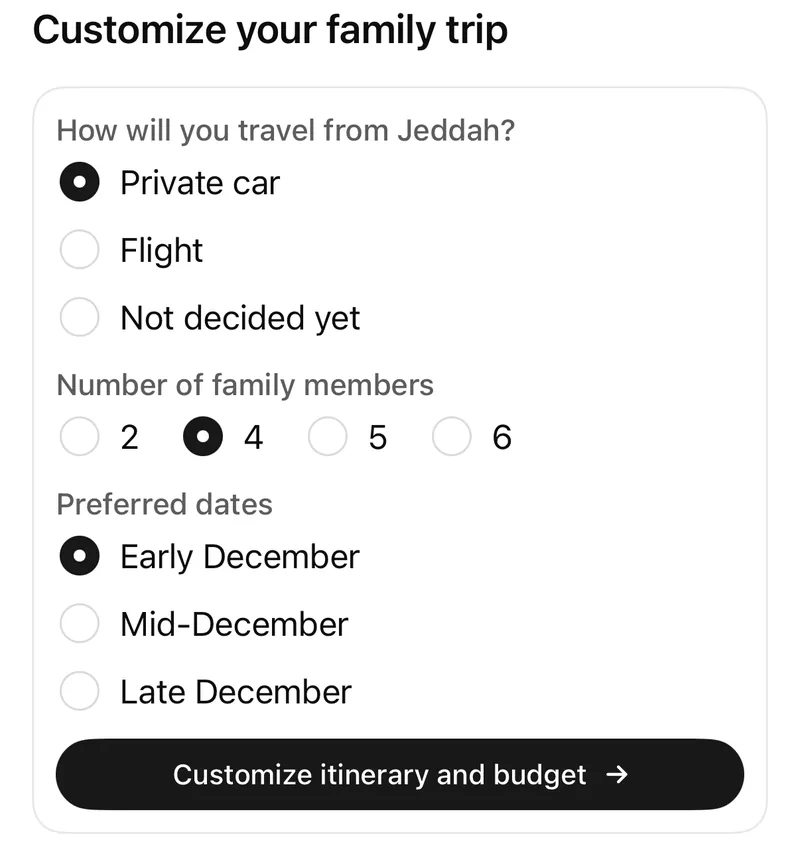
A form to customize the trip. You pick how you travel from Jeddah (private car, flight or not decided yet), the number of family members and preferred dates, then tap “Customize itinerary and budget.”
Two rough edges: the photo gallery at the top of the English answer loaded only as grey placeholders on the first try (the Arabic answer did show photos), and a few Arabic labels and digits remained in the English version. Still, one prompt produced a useful first draft.
Limits and things to watch
Intelligent UI still has real limits:
- A polished answer can still be wrong. OpenAI’s own help pages remind users that ChatGPT can make mistakes, and advise checking important information, especially for exams, health, legal or financial topics [5][6]. A neat chart can make an error look convincing, so check anything important against an official source or a qualified professional.
- Not every answer gets visuals. OpenAI product manager Aarush Selvan told WIRED that the design team worked to decide when a diagram or buttons “adds value versus when it’s starting to feel cluttered” [3]. When plain text is the most useful answer, you still get plain text [1].
- Not everyone wants visuals every time. One reviewer called Intelligent UI a real improvement for some answers, especially numbers, but “an annoyance for the rest” unless it can be switched off [4].
- It is still rolling out. Availability depends on your plan, app version and workspace, so features may appear at different times for different users [2].
How to turn off (or reduce) ChatGPT Intelligent UI
You cannot fully switch Intelligent UI off, but you can reduce it or ask for plain text:
- Use the web setting. On ChatGPT on the web, open Settings → Personalization → Layout and Visuals and choose Simple [1]. OpenAI’s help pages word this differently: another page describes it as a Layout and visuals switch that you turn off [2]. Look for whichever version appears on your account. Either way, OpenAI says this “reduces visual and interactive elements, though some may still appear” [1].
- Use Custom Instructions. Add a line such as “Prefer plain text answers; avoid charts and interactive elements unless I ask.” OpenAI confirms that Custom Instructions can guide the response style [1].
- Ask in the chat. Start a conversation with “Plain text only, please.” OpenAI says you can ask for a different style in an individual conversation [1], and WIRED reports that users can tell ChatGPT to generate fewer visuals [3].
- Choose a model without it (paid plans). The Pro reasoning option (GPT-6 Astra) doesn’t use Intelligent UI [1]. OpenAI’s help page also says that if you explicitly select GPT-5.6 Sol, your chat stays on GPT-5.6 [2]. That option may not stay available for long, as older models are retired over time.
What else happened in AI this month
GPT-6 in ChatGPT was not the only notable AI launch of October 2026. Here are three others worth knowing:
- Google Gemini 4 Argon (October 13): Google’s new model for complex coding, agentic work, math and science. It is available to developers and businesses through the API in Google AI Studio, and to Google AI Pro and Ultra subscribers in the Gemini app and AI Mode in Search [7].
- Anthropic Claude Haiku 5.5 (October 7): A small, fast model for high-volume tasks like summaries and classification. Compared with the previous Haiku 4.5, Anthropic says it costs around 75% less to run on average [8].
- Meta Muse Spark Open (October 15): An open-weight model with 816 billion total parameters (42 billion active) and a 1-million-token context window. Meta says it is the first model in its class that can run on a desktop, using two Apple M5 Ultra Mac Studios [9].
WIRED also notes that Google has explored a similar “generative UI” idea in Search [3].
Our take
Intelligent UI is one of the most visible changes to ChatGPT in a long time, and it is useful for learning, planning and quick everyday tools. For students, teachers and families, an interactive diagram can often make a concept easier to grasp than text alone.
Still, use it with healthy caution. Treat ChatGPT’s tables and calculators as a helpful first draft, and confirm anything that matters. If the visuals get in your way, turn them down in Settings or simply ask for plain text.
Note: our AlUla test was run on October 21, 2026. Other hands-on observations come from OpenAI’s documentation and the reporting cited below.
AiPlusDaily is independent and is not affiliated with OpenAI, Google, Anthropic or Meta.
FAQ
Is GPT-6 free in ChatGPT?
Yes. GPT-6 began rolling out to Free and Go users on October 8, 2026, powered by GPT-6 Luna. Paid plans use GPT-6 Sol. The rollout is gradual [1][3][4].
What is the difference between GPT-6 Sol and GPT-6 Luna?
Sol powers GPT-6 on Plus, Pro, Business and Enterprise, and Luna powers it on Free and Go. OpenAI says both are tuned for everyday conversation and both support Intelligent UI [1].
Can I turn off Intelligent UI completely?
No. On the web, you can choose a simpler layout in Settings → Personalization → Layout and Visuals, which reduces visual elements, but some may still appear [1][2].
Does Intelligent UI work in Voice mode or the Work tab?
No. It works in the Chat tab only [1].
Does Intelligent UI work on mobile?
Yes, in supported, updated ChatGPT apps, as well as on the web. The setting for reducing visuals is documented for the web [1][2].
Why don’t I see interactive answers?
Update your app and use GPT-6 at Instant through Extra High (not Pro). On an older desktop app, try the web instead. The rollout may also not have reached your account yet [1][2].
Sources
- OpenAI Help Center — "Intelligent UI in ChatGPT," accessed October 21, 2026. https://help.openai.com/en/articles/20001598-intelligent-ui-in-chatgpt
- OpenAI Help Center — "GPT-6 and other models in ChatGPT," accessed October 21, 2026. https://help.openai.com/en/articles/20001354-gpt-6-and-other-models-in-chatgpt
- WIRED (Reece Rogers) — "The New ChatGPT Is More Show Than Tell," October 7, 2026. https://www.wired.com/story/openai-chatgpt-intelligent-ui-is-more-show-than-tell/
- HypeSkeptics (Noa Vandermeer) — "ChatGPT's Charts and Buttons Are Useful, as Long as I Can Ask for Plain Text," October 8, 2026. https://www.hypeskeptics.com/articles/chatgpt-intelligent-ui-gpt-6/
- OpenAI Help Center — "Flashcards in ChatGPT," accessed October 21, 2026. https://help.openai.com/en/articles/20001533-flashcards-in-chatgpt
- OpenAI Help Center — "Using study mode in ChatGPT," accessed October 21, 2026. https://help.openai.com/en/articles/11780217-study-mode
- Google (Koray Kavukcuoglu) — "Gemini 4 Argon is now available for everyone," October 13, 2026. https://blog.google/innovation-and-ai/models-and-research/gemini-models/introducing-gemini-4-argon/
- Anthropic — "Introducing Claude Haiku 5.5," October 7, 2026. https://www.anthropic.com/claude-haiku-5-5
- Meta AI Research — "Introducing Muse Spark Open," October 15, 2026. https://research.meta.ai/blog/muse-spark-open